How to Set Up a Smart Home Network
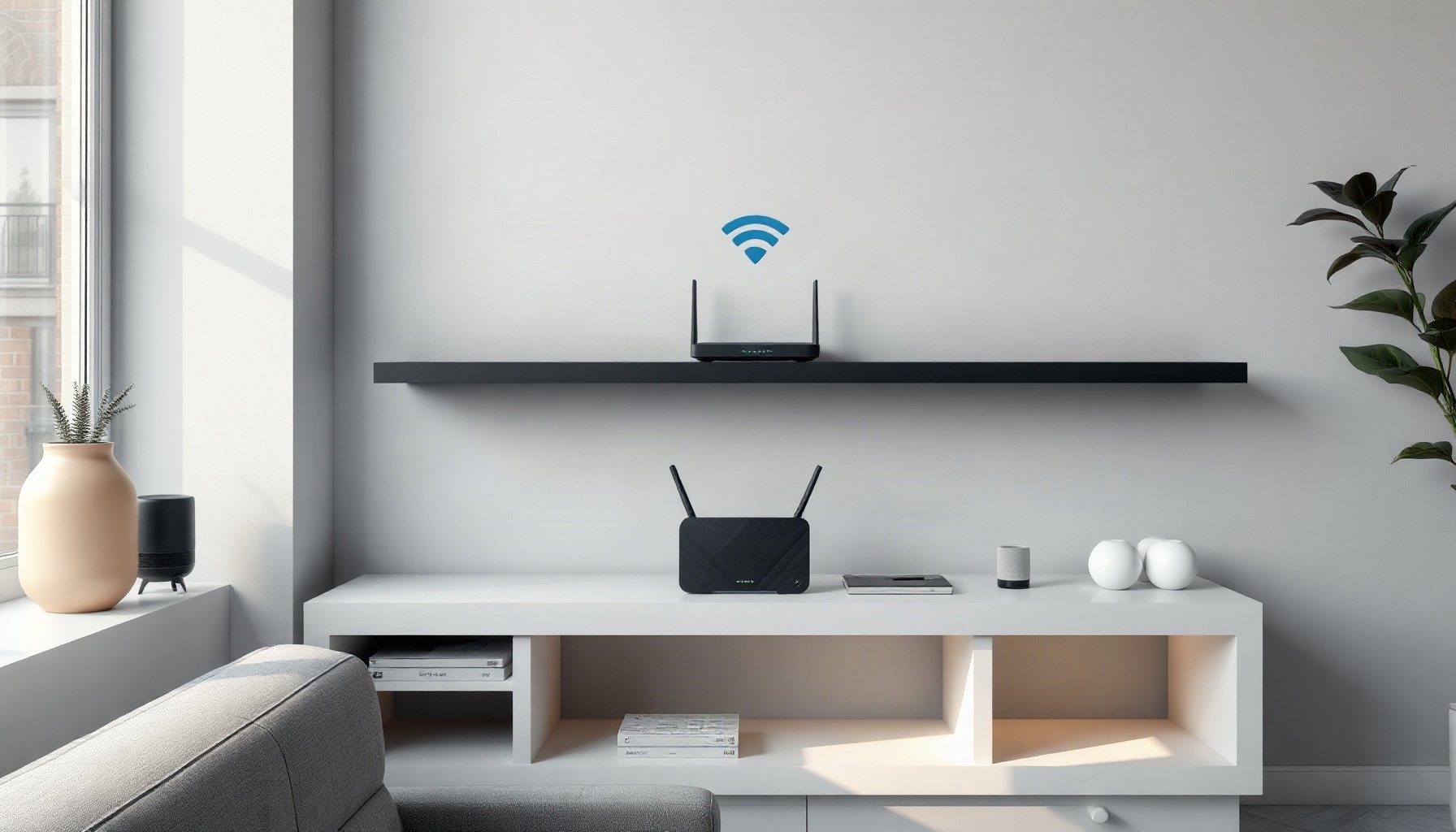
Set up a reliable smart home network by placing your router centrally, choosing the right Wi-Fi band for each device, and adding Zigbee or Thread for low-power sensors that shouldn’t crowd your Wi-Fi. If your living room light drops offline every evening, it’s usually a placement or band problem rather than a broken bulb. This guide walks through placement, band selection, congestion control, and when to add Zigbee or Thread so your network stays reliable.
How to Set Up a Smart Home Network for Beginners?
Beginners should start with central router or mesh placement, pick the correct Wi-Fi band per device, manage congestion, and add Zigbee or Thread for low-power sensors. Apple notes that 2.4 GHz offers greater range and better obstacle penetration, while 5 GHz delivers higher throughput over shorter distances. Apple’s Wi-Fi recommendations.
How This Guide Was Built
This guide is based on official documentation, pricing pages, and community reports — we did not run the hardware hands-on. We verified Wi-Fi placement and band guidance, plus the roles of Zigbee and Thread. We did not test specific router models or specific Zigbee coordinators. Last verified: August 2026.
Map Your Home and Count Your Devices
Sketch a simple floor plan and list every smart device by room, noting whether each needs 2.4 GHz, 5 GHz, or a low-power mesh protocol. Tally the count, but remember there is no universal maximum — capacity depends on airtime, interference, and hardware. For ideas on compatible hardware, see our best smart plugs for 2026 roundup.
Choose Between a Single Router and a Wi-Fi Mesh System
Small homes with a handful of devices can rely on a single well-placed router. Larger or multi-story layouts usually benefit from a mesh system, which creates one logical network across multiple access points. Mesh avoids the dead zones that force devices onto weak signals and drop connections.
Place the Router or Mesh Access Points
Place your router or mesh access points in open, elevated locations away from cabinets and metal obstructions. Google Nest recommends keeping points out in the open and off the floor. Poor placement is the leading cause of offline devices, so treat location as your first troubleshooting step. Google Nest placement guidance.
Configure the Wi-Fi Network for Smart Home Devices
Use the same SSID across both 2.4 GHz and 5 GHz bands so devices can move between bands smoothly. Apple recommends setting the 2.4 GHz band to a 20 MHz channel width to reduce interference in crowded environments. Keep the network name simple and avoid special characters that some smart devices struggle to parse. Apple’s Wi-Fi recommendations.
When to Use 2.4 GHz Wi-Fi
2.4 GHz covers more distance and penetrates walls better, making it the default for most smart plugs, sensors, and lights. Many of these devices are 2.4 GHz-only because the radio is a hardware limitation, not a configuration option. If a device only lists 2.4 GHz during setup, respect that constraint. Apple’s Wi-Fi recommendations.
When to Use 5 GHz Wi-Fi
5 GHz delivers higher throughput over shorter distances, which suits cameras, streaming hubs, and tablets that move around the house. Not every smart device supports it, and its shorter range means placement matters more. Push high-bandwidth devices to 5 GHz to free up airtime for everything else. Apple’s Wi-Fi recommendations.
How to Reduce Wi-Fi Congestion
Set the 2.4 GHz band to 20 MHz, pick the least-crowded channel with a Wi-Fi analyzer, and move high-bandwidth devices to 5 GHz. For mesh systems, use a wired backhaul between nodes when possible. There is no fixed device ceiling — congestion depends on total airtime, interference, and your hardware’s capacity. Apple’s Wi-Fi recommendations.
Add Zigbee with a Coordinator
Zigbee is a low-power, low-data-rate mesh protocol ideal for sensors and switches that should not consume Wi-Fi airtime. Mains-powered Zigbee devices extend the mesh by repeating signals for battery-powered ones. A Zigbee coordinator manages the network and is distinct from both a Wi-Fi access point and a Thread border router. Home Assistant uses ZHA, which requires a compatible coordinator — Zigbee overview, Home Assistant ZHA integration. For the full setup, follow our Home Assistant setup guide.
Add Thread with a Border Router
Thread is a low-power IPv6 mesh that operates separately from Wi-Fi. A Thread border router connects the Thread mesh to other IP networks, and multiple border routers can participate in the same Thread network. This role is distinct from both a Wi-Fi access point and a Zigbee coordinator. Home Assistant’s Thread integration requires a Thread border router — What is Thread, Thread Border Routers, Home Assistant Thread integration.
Build and Test the Network in Stages
Start with your router or mesh system and confirm internet and Wi-Fi coverage. Add Wi-Fi smart devices one room at a time, verifying each connects before moving on. Next, set up a Zigbee coordinator and add mesh devices. Then add a Thread border router and Thread devices. Verify each layer before proceeding to the next.
Troubleshoot Offline Devices and Weak Connections
Check proximity to the nearest access point and confirm the device is on the correct band. Reboot the device before rebooting the router. Update firmware, and reposition mesh points if needed. For Zigbee and Thread devices, ensure a mains-powered repeater is nearby to keep the mesh strong.
Common Mistakes When Setting Up a Smart Home Network
- Hiding mesh nodes inside cabinets or behind metal furniture.
- Using a 5 GHz-only SSID, which excludes 2.4 GHz-only devices.
- Placing smart devices on a guest network that blocks local discovery.
- Confusing a Thread border router with a Zigbee coordinator.
- Adding too many Wi-Fi devices without considering airtime usage.
FAQ
Do smart home devices need their own Wi-Fi network?
Not necessarily. Using the same SSID across bands works for most homes and keeps devices on the best available signal. A separate IoT network or VLAN adds security but can break local discovery for devices that rely on broadcast traffic. Apple’s Wi-Fi recommendations.
Is 2.4 GHz or 5 GHz better for smart home devices?
Most smart devices need 2.4 GHz for range and wall penetration, especially plugs, sensors, and lights. 5 GHz is better for high-bandwidth devices like cameras and streaming hubs. Match the band to the device’s capabilities and location. Apple’s Wi-Fi recommendations.
Do I need Zigbee or Thread if I already have Wi-Fi?
They offload low-power devices from Wi-Fi airtime, which helps as your device count grows. Wi-Fi alone is fine for a small setup, but Zigbee and Thread meshes scale better and maintain connections with less interference. Add them when congestion or frequent dropouts become a problem.
Where to Go Next
With your network foundation in place, the next step is tying everything together with reliable automations. Read our beginner’s guide to Home Assistant automations to turn your stable network into a responsive smart home. For deeper protocol details, revisit our Zigbee vs Z-Wave vs Matter comparison and the latest Matter 1.6 update.
📖 Related Reads
- ToolBrain — tool reviews, LLM comparisons, and AI workflow guides
Cross-links automatically generated from SmartHome Field Guide.
← Back to guides